
Learn how to correctly capture and scan your biometric document for UR's KYC process, including photo tips and NFC scanning steps.
When verifying your identity, the way you photograph and scan your biometric document matters. A proper capture helps avoid rejections and keeps the process fast. Follow these steps and use the visual examples for reference.
Step 1: Take a clear photo of your document
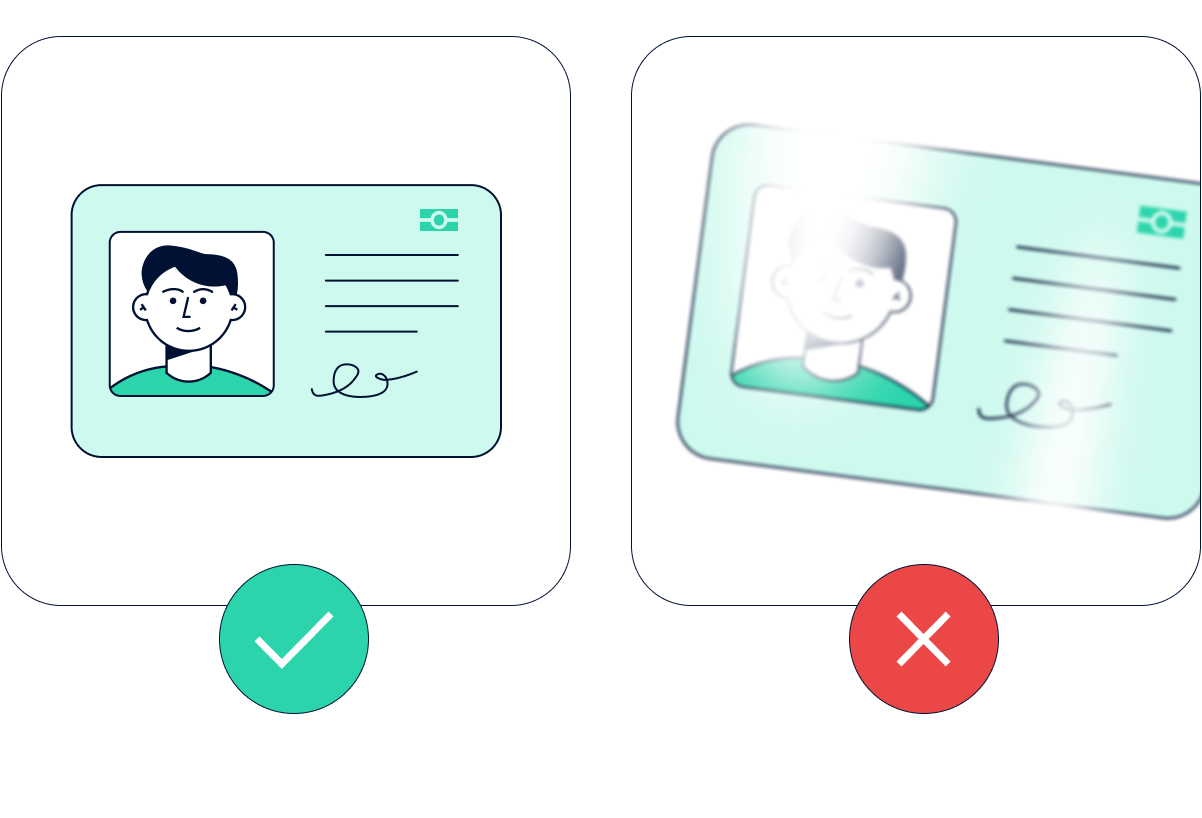
Hold the document upright in your hand, as shown in the example image.
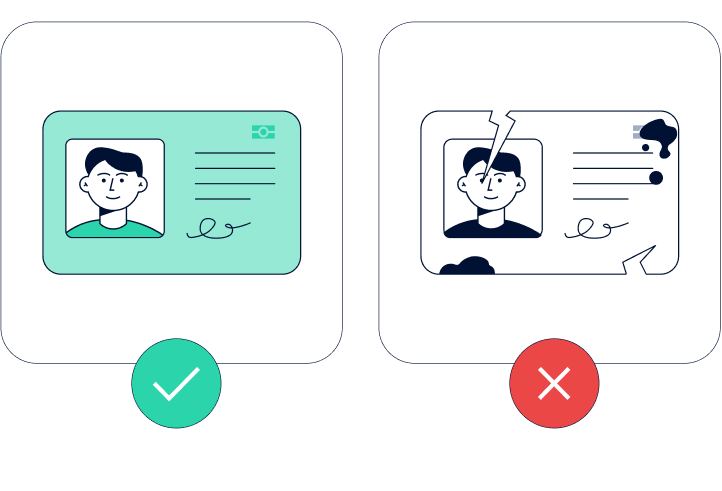
Make sure the entire page is visible, with all four corners in the frame.
All details must be sharp and readable: your face photo, full name, date of birth, document number, and the machine-readable zone (MRZ).
Avoid glare, shadows, or blurriness.
Do not crop, edit, or apply filters.
Use the original document only, not a photocopy or screenshot.
Step 2: Perform the NFC scan (for documents with a chip)
Where the chip is in your document
-
Passports:
Many countries (e.g., Germany, Japan, Korea, Malaysia, Italy) embed the chip in the polycarbonate photo/data page.
Some (e.g., older Chinese, Hong Kong, Italian passports) place it in the back cover.
Where the NFC antenna is in your phone
iPhone 11--15: top-back, near the camera.
Samsung Galaxy S20--S25: upper-back, above the wireless charging coil, away from the camera.
Google Pixel 6--10: back, upper-center near the camera bar.
Huawei, Xiaomi: usually back center or upper-back.
How to scan successfully
Identify where the chip is in your document (cover vs. data page vs. card body).
Place that part of the document against your phone's NFC antenna area.
Hold steady for 5--10 seconds until confirmation appears.
If not detected, slide the document slowly around the back of your phone until the antenna meets the chip.
Quick device scanning tips
- iPhone: put the phone so the top/back area (near camera) is over the passport page or card; keep steady until read completes. Newer iPhones often register fastest when the camera area sits over the document chip area.
- Android (Samsung/Pixel/Xiaomi/Huawei): start by placing the card or passport centered on the phone back; if no read, shift slowly up/down and left/right near the top half — the antenna may be upper-middle, center, or slightly offset.
- Remove thick metal cases; keep passports flat; do not cover the phone back with metal objects.
For your security: UR will only contact you from official @ur.app email addresses or through in-app notifications. We will never ask for your password, private keys, or any sensitive credentials via email. If you receive a suspicious message claiming to be from UR, please do not respond and contact our support team immediately.
Related to